

Fix your website faster with an LLM
PinchTab's annotate overlay lets you click any element on a live page and copy a precise, unambiguous reference to paste into your LLM chat — no "which button?" round-trip.
When you ask an LLM to “fix this button,” it has to guess which element you mean from a vague description. That round-trip — “which button?”, “the blue one, top right”, “I don’t see it” — is where most of the time goes.
PinchTab’s annotate overlay removes the guessing. It draws a labelled box on every interactive element on the live page, and each label is a one-click “copy a precise reference for this element” button. You click the thing you want changed, paste the reference into your LLM chat, and the model knows exactly which element you mean — page, ref, role, accessible name, CSS selector, and XPath, with no ambiguity.
This guide shows the full loop.
The loop
- Annotate the page — draw a labelled box on every interactive element.
- Click the label on the element you want to change.
- Paste the copied reference into your LLM chat.
- Let the LLM locate and fix the element from an unambiguous selector.
1. Open the page in a headed browser
Annotation is a human-facing overlay, so run a headed instance you can actually look at. See Headed mode for details.
# start a visible browser and open your site
pinchtab instance start --browser cloak --mode headed
pinchtab --server http://127.0.0.1:9870 nav https://your-site.com
2. Annotate
pinchtab --server http://127.0.0.1:9870 annotate
Every interactive element gets a pink box labelled with its ref (e0, e1, …). The command also prints a legend so you can correlate the on-screen labels with roles and text:
Annotated 93 elements — click a label in the browser to copy its reference
e0 switch "Switch between human and agent mode"
e4 link "View on GitHub"
e5 link "Docs"
…
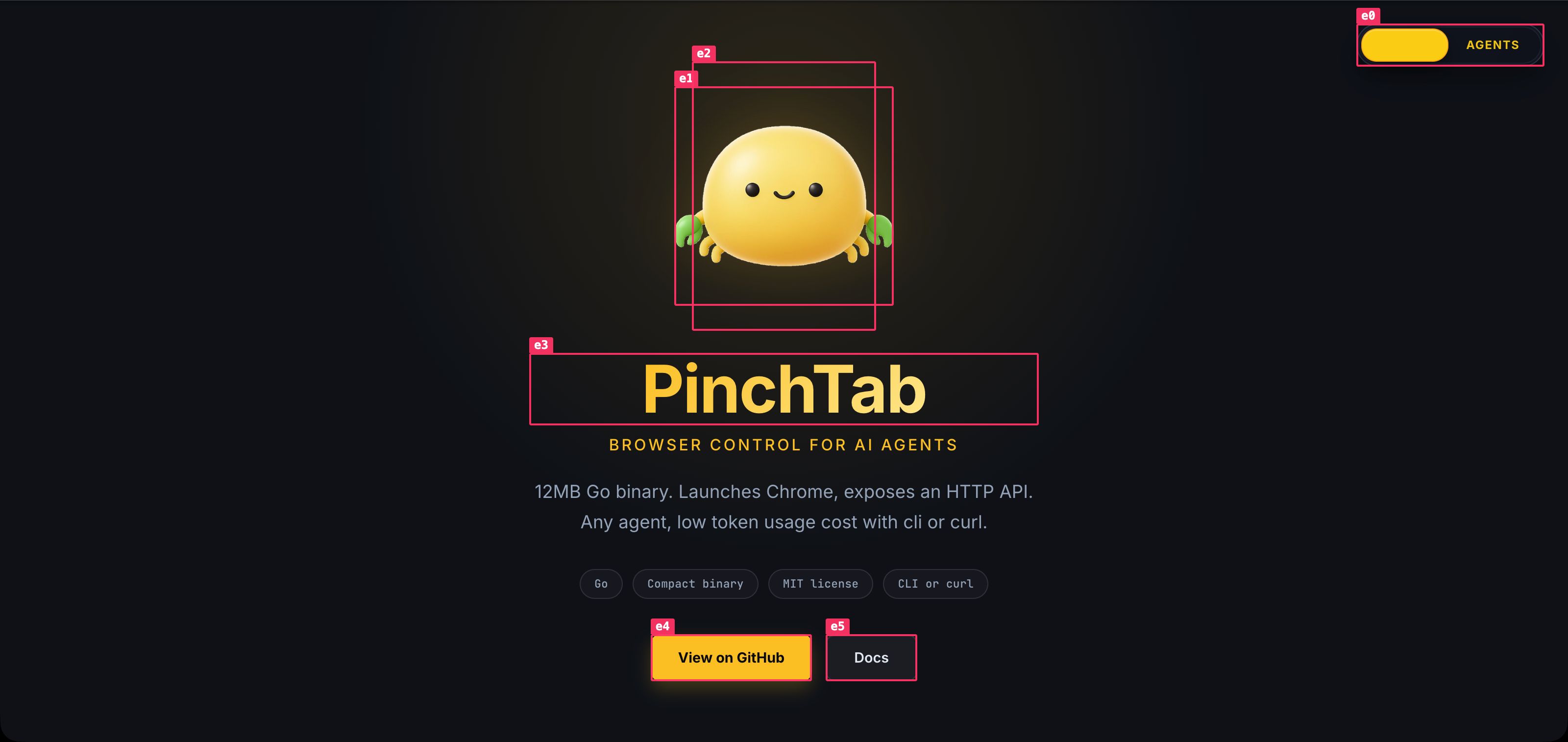
The overlay is real DOM on the live page — it stays there and scrolls with the content, so you can browse around and pick your target. (It’s a one-shot injection: after navigating or a big layout change, run annotate again to refresh.)
3. Click the label to copy a reference
Click the label (the little pink tag, not the box) on the element you want to change. It flashes green to confirm the copy:
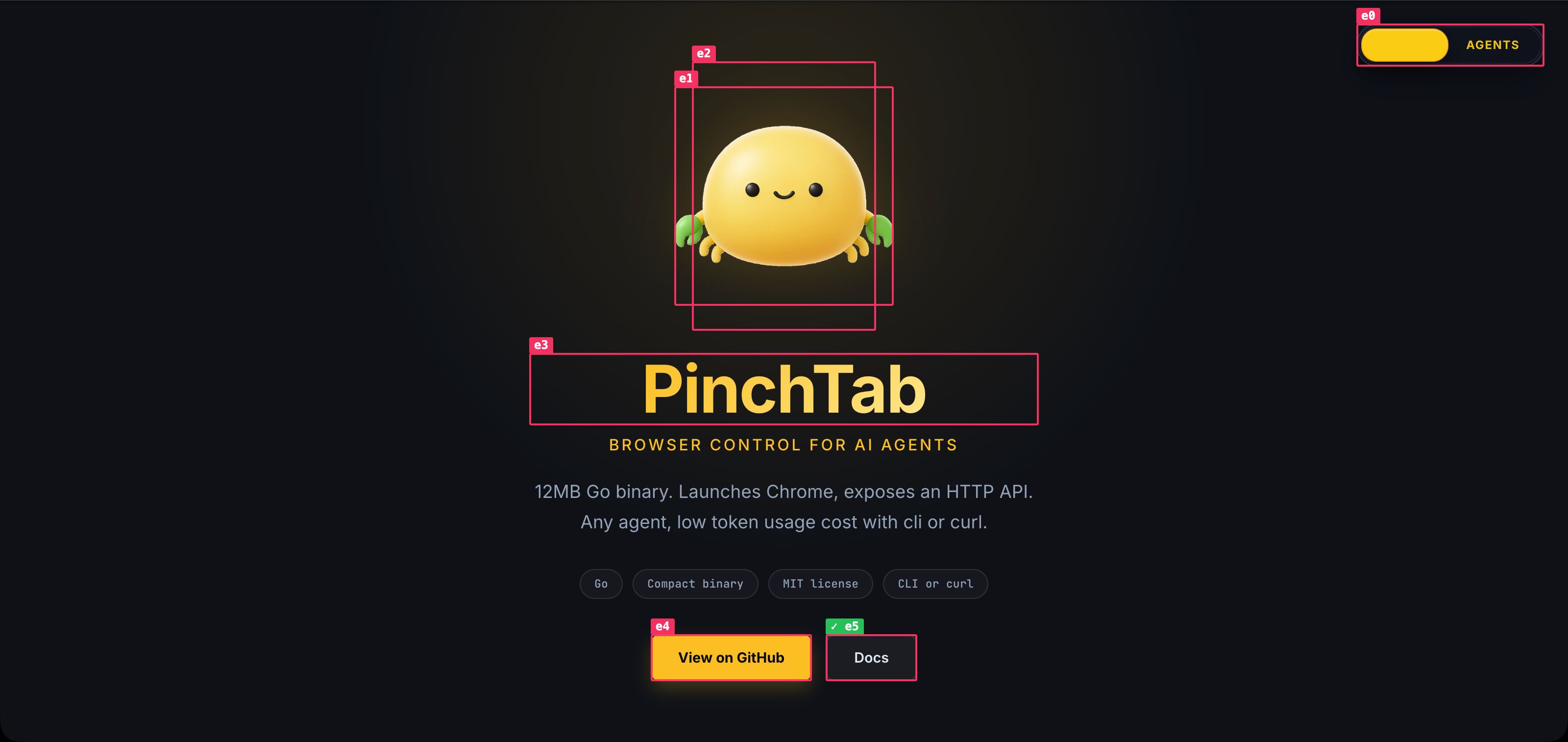
Your clipboard now holds a complete, unambiguous reference:
Page: PinchTab — Browser Control for AI Agents (https://pinchtab.com/)
Element: e5 — link "Docs"
CSS: body > main > section:nth-of-type(1) > div:nth-of-type(3) > div:nth-of-type(4) > a:nth-of-type(2)
XPath: /html[1]/body[1]/main[1]/section[1]/div[3]/div[4]/a[2]
Every field an LLM needs to locate the element in your source is there:
- Page — which page/route the element is on.
- Element — the ref plus its role and accessible name (“link, Docs”).
- CSS — a unique CSS selector path.
- XPath — an absolute XPath as a fallback.
4. Paste into your LLM chat
Now just paste and describe the change:
Fix this — the link should open in a new tab:
Page: PinchTab — Browser Control for AI Agents (https://pinchtab.com/)
Element: e5 — link "Docs"
CSS: body > main > section:nth-of-type(1) > div:nth-of-type(3) > div:nth-of-type(4) > a:nth-of-type(2)
XPath: /html[1]/body[1]/main[1]/section[1]/div[3]/div[4]/a[2]
The LLM has the accessible name to grep your source (“Docs”), the CSS/XPath to disambiguate which of several similar elements you mean, and the page URL for context. No “which button?” round-trip.
Clean up
Remove the overlay when you’re done:
pinchtab --server http://127.0.0.1:9870 annotate --clear
Notes
- The copied block contains page content. The page title and the element’s accessible name are page-controlled text. When pasting into an LLM chat, treat them as untrusted data — a malicious page could craft element names that read like instructions.
- No
evalpermission required. The overlay is injected through PinchTab’s internal engine, so it works withsecurity.allowEvaluate: false. - Copying uses the page’s clipboard (
navigator.clipboard) on your real click, so it needs a focused, secure-context (HTTPS) page — exactly the case when you’re looking at a headed window. - Scope it with
--selectorto annotate only part of a busy page:pinchtab --server http://127.0.0.1:9870 annotate --selector "#pricing" - The refs (
e5, …) are the same refs the rest of PinchTab uses, so you can also act on them directly:pinchtab --server http://127.0.0.1:9870 click e5.
How it compares to annotated screenshots
pinchtab screenshot --annotate bakes the boxes into an image and then removes the overlay — useful when you genuinely need a picture, e.g. feeding a labelled screenshot to a vision model or reviewing layout yourself. pinchtab annotate is the opposite: it leaves the boxes on the live page and makes them clickable, for a human driving the fix loop.
For an LLM, though, a screenshot is usually the expensive option. Images cost far more tokens than text, and a model has to infer structure from pixels. Reading the content directly — the accessibility tree, roles, names, and the exact refs annotate copies — is cheaper and less ambiguous. So reach for a screenshot when vision is the point (visual bugs, spacing, “does this look right”), and let the model read content directly for everything else. Use the annotate form for yourself; use screenshots only when the pixels are what matters.